In the past year, I’ve been building skills in working with a computer instance- configuration, placing it within a network, working with Linux and the command line, but it’s only now that I’m building a really important piece for application architecture- building a database. In this post, I’m going to create a database table for an application that I’m building with Python that will allow a user to track their favorite activities on a daily basis. For me, I’m always trying to keep track of certain metrics – the amount of water I drink, the number of miles I jog, how long I have studied x, y and z, all leading towards goals that I have set for myself.
That’s important for me, because it’s powerful to see whether I am making progress or not- it definitely helps with motivation. It keeps me on track.
I have apps that will tell me how far I have run. I have a spreadsheet where I can enter all the info. But it feels unwieldy to open up a spreadsheet and peer at the numbers. I want to build something that makes it easy to find the data I am looking for – what is important to me – and having a database will make that a doable option in the future. So, let’s get to it.
The first way is to use the command-line, which is good to know since working with cloud instances this is the best way to go. To access to MySQL database on my local computer, I entered the following (along with my password) on the command-line:
$ mysql -uroot -pWith the database connected, I used a series of SQL statements to first create a database, connect to it, then create a table using five different code statements that define table columns and its data type. A user will be asked their username and password to login, an email address to reset password, a userid to connect to other tables and saved values, and a city because it’d be nice to have an image in the background (maybe, in the future 🙂 :
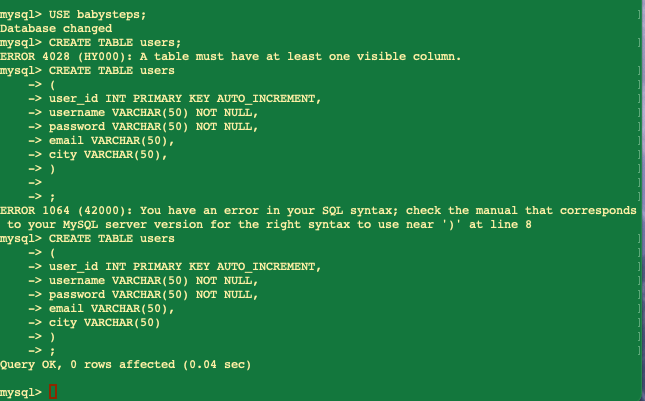
Now to shift over to using MySQL Workbench to create a table within that same database- this is a GUI tool that makes it more friendly to work with SQL statements and scripts. For example, when I wrote my long(ish) SQL statement in the command-line, it didn’t work the first time, so it was a pain to have to re-enter all the commands again. Within the Workbench, it’s like a word processing interface – you can click anywhere and make changes. So that’s pretty nice.
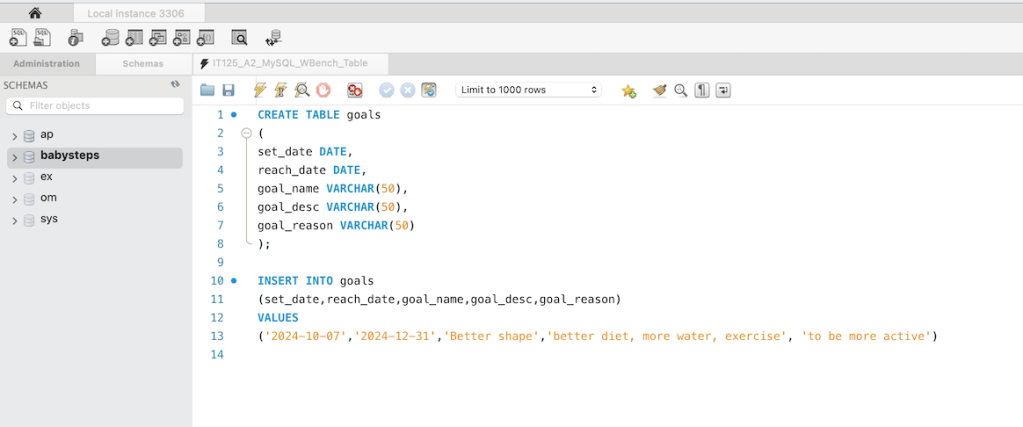
For that second table, I wanted to create a place to save a user’s goals. I’m a huge believer in having goals right there in front of you, to keep you motivated, so in this table I’ll be asking for when the goal was set, when it is supposed to be achieved, the name, reason for, and description for the goal. When one is struggling to get to the gym or resist that slice of pie, this might just be a game changer! Here’s the code in Workbench:
Finally, one can use a text editor, like Visual Code Studio or vim, to create the SQL statments and save as a .sql file, and then load them into Workbench to be run. This really wasn’t much different than just typing into the Workbench editor, but will be useful for having scripts ready to go with a IaC approach.
 davethemaker