I’m working on learning AWS by systematically reading through “Amazon Web Services In Action, 3rd edition”, by Michael Wittig and Andreas Wittig. There are so many resources that are available, and it’s easy to get pulled here and there – but I find this book to be pretty thorough without being too detailed or confusing, so I’m going to just focus on this resource and getting a good sense of AWS. That, to my way of thinking, will be good in and of itself, but also to help me better understand IaC as a whole – much of this, I believe, will transfer readily to Azure and Google Cloud. I’m going to jot down my thoughts for reference, later, here
There are five parts to a CloudFormation template:
- Format version – currently ‘2010-09-09’. Always include this.
- Description – what is this template about?
- Parameters – used to customize a template (ex: DB password). String, List, Key-Value pairs, etc
- Resources – ex: database, LB, VM
- Outputs – returned details about a resource (ex: IP address of VM)
An example for an EC2 instance might look like:

Here is a link to templates that are available for users of the book:
https://github.com/widdix/aws-cf-templates.gitHere is an example CloudFormation from AWS:
"Resources" : {
  ...
  "WebServer": {
    "Type" : "AWS::EC2::Instance",
    "Properties": {
      "ImageId" : { "Fn::FindInMap" : [ "AWSRegionArch2AMI", { "Ref" : "AWS::Region" },
                        { "Fn::FindInMap" : [ "AWSInstanceType2Arch", { "Ref" : "InstanceType" }, "Arch" ] } ] },
      "InstanceType"   : { "Ref" : "InstanceType" },
      "SecurityGroups" : [ {"Ref" : "WebServerSecurityGroup"} ],
      "KeyName"        : { "Ref" : "KeyName" },
      "UserData" : { "Fn::Base64" : { "Fn::Join" : ["", [
                     "#!/bin/bash -xe\n",
                     "yum update -y aws-cfn-bootstrap\n",

                     "/opt/aws/bin/cfn-init -v ",
                     "         --stack ", { "Ref" : "AWS::StackName" },
                     "         --resource WebServer ",
                     "         --configsets wordpress_install ",
                     "         --region ", { "Ref" : "AWS::Region" }, "\n",

                     "/opt/aws/bin/cfn-signal -e $? ",
                     "         --stack ", { "Ref" : "AWS::StackName" },
                     "         --resource WebServer ",
                     "         --region ", { "Ref" : "AWS::Region" }, "\n"
      ]]}}
    },
    ...
  },
  ...
  "WebServerSecurityGroup" : {
    "Type" : "AWS::EC2::SecurityGroup",
    "Properties" : {
      "GroupDescription" : "Enable HTTP access via port 80 locked down to the load balancer + SSH access",
      "SecurityGroupIngress" : [
        {"IpProtocol" : "tcp", "FromPort" : 80, "ToPort" : 80, "CidrIp" : "0.0.0.0/0"},
        {"IpProtocol" : "tcp", "FromPort" : 22, "ToPort" : 22, "CidrIp" : { "Ref" : "SSHLocation"}}
      ]
    }
  },
  ...
},
For practice, I created a new stack in CloudFormation selecting the option With New Resources, saying that the Template Is Ready, and then selecting a S3 bucket location where the template could be downloaded by CF:
https://s3.amazonaws.com/awsinaction-code3/chapter04/virtualmachine.yaml
I selected the instance type, the VPC and subnet, and CloudFormation began creating the stack. It took a few minutes, but a status CREATE_COMPLETE was displayed and in the Outputs tag, I could see my EC2 instance and ID.
Going to the EC2 page in the EC2 Management Console, I did indeed find my newly-created EC2 instance. Cool!

Here’s the CloudFormation template for creating that EC2 instance:
---
AWSTemplateFormatVersion: '2010-09-09'
Description: 'AWS in Action: chapter 4'
Parameters:
  VPC:
    Description: 'Just select the one and only default VPC'
    Type: 'AWS::EC2::VPC::Id'
  Subnet:
    Description: 'Just select one of the available subnets'
    Type: 'AWS::EC2::Subnet::Id'
  InstanceType:
    Description: 'Select one of the possible instance types'
    Type: String
    Default: 't3.micro'
    AllowedValues: ['t3.micro', 't3.small', 't3.medium']
Mappings:
  RegionMap:
    'eu-north-1':
      AMI: 'ami-05bc2576a72f22c39'
    'ap-south-1':
      AMI: 'ami-0002bdad91f793433'
    'eu-west-3':
      AMI: 'ami-0c73cd1c5347436f3'
    'eu-west-2':
      AMI: 'ami-029ed17b4ea379178'
    'eu-west-1':
      AMI: 'ami-04632f3cef5083854'
    'ap-northeast-3':
      AMI: 'ami-0ae88850834d2c589'
    'ap-northeast-2':
      AMI: 'ami-0263588f2531a56bd'
    'ap-northeast-1':
      AMI: 'ami-0abaa5b0faf689830'
    'sa-east-1':
      AMI: 'ami-053a035b046dbb704'
    'ca-central-1':
      AMI: 'ami-0173297cea9ba27b0'
    'ap-southeast-1':
      AMI: 'ami-0d1d4b8d5a0cd293f'
    'ap-southeast-2':
      AMI: 'ami-0f4484f62c4fd8767'
    'eu-central-1':
      AMI: 'ami-099ccc441b2ef41ec'
    'us-east-1':
      AMI: 'ami-061ac2e015473fbe2'
    'us-east-2':
      AMI: 'ami-056b1936002ca8ede'
    'us-west-1':
      AMI: 'ami-028f2b5ee08012131'
    'us-west-2':
      AMI: 'ami-0e21d4d9303512b8e'
Resources:
  SecurityGroup:
    Type: 'AWS::EC2::SecurityGroup'
    Properties:
      GroupDescription: !Ref 'AWS::StackName'
      VpcId: !Ref VPC
  InstanceProfile:
    Type: 'AWS::IAM::InstanceProfile'
    Properties:
      Roles:
      - !Ref InstanceRole
  InstanceRole:
    Type: 'AWS::IAM::Role'
    Properties:
      AssumeRolePolicyDocument:
        Version: '2012-10-17'
        Statement:
        - Effect: Allow
          Principal:
            Service: 'ec2.amazonaws.com'
          Action: 'sts:AssumeRole'
      ManagedPolicyArns:
      - 'arn:aws:iam::aws:policy/AmazonSSMManagedInstanceCore'
  VM:
    Type: 'AWS::EC2::Instance'
    Properties:
      ImageId: !FindInMap [RegionMap, !Ref 'AWS::Region', AMI]
      InstanceType: !Ref InstanceType
      IamInstanceProfile: !Ref InstanceProfile # instead of ec2-ssm-core we use a instance profile created in the same template for testability
      SecurityGroupIds: [!Ref SecurityGroup]
      SubnetId: !Ref Subnet
Outputs:
  InstanceId:
    Value: !Ref VM
    Description: 'Instance id (connect via Session Manager)'
Updating Infrastructure using CloudFormation
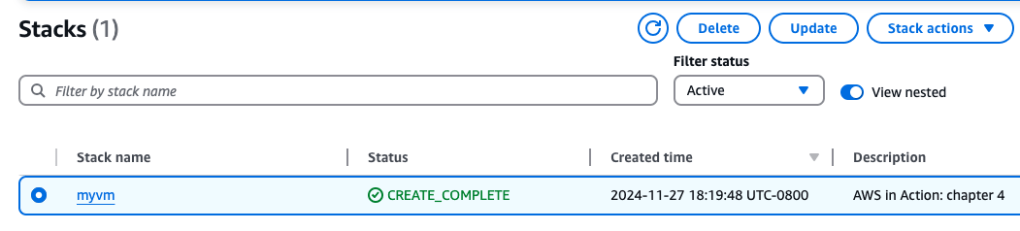
Right now, I have a t3.micro instance running – I’d like to modify it’s capacity. Back on the CF page, I select the stack and there is an ‘update’ option.
I select existing template when getting ready to make changes:
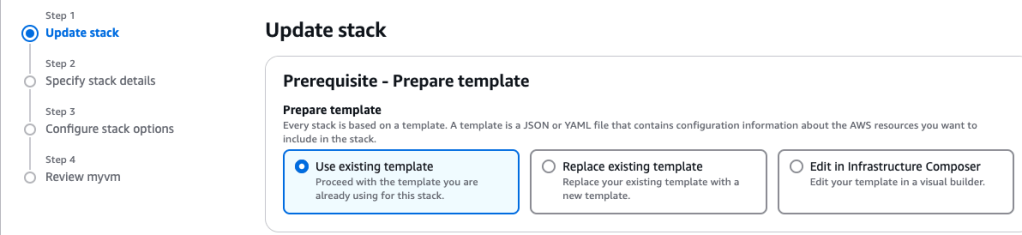
I change the InstanceType to a bigger size – t3.small.

I didn’t make any other changes, just clicking through to the end like before – basically running through the initial steps of spinning up the CF template. And just like before, CF started working on the stack, displaying a UPDATE_IN_PROGRESS status message.
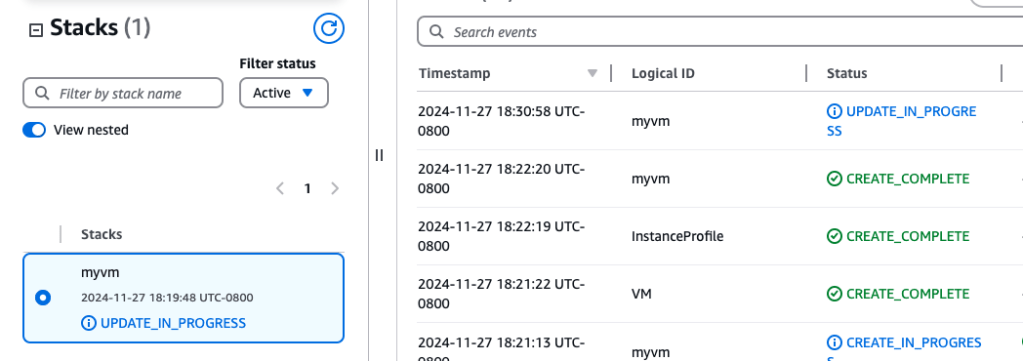
And then…update complete! Time to check EC2 Management Console…

And there it is- a bright, shiny t3.small EC2 instance!

Time to clean up: select the stack
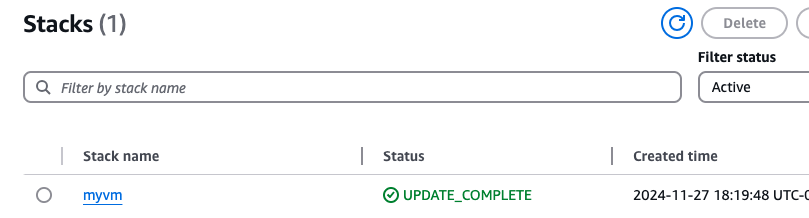
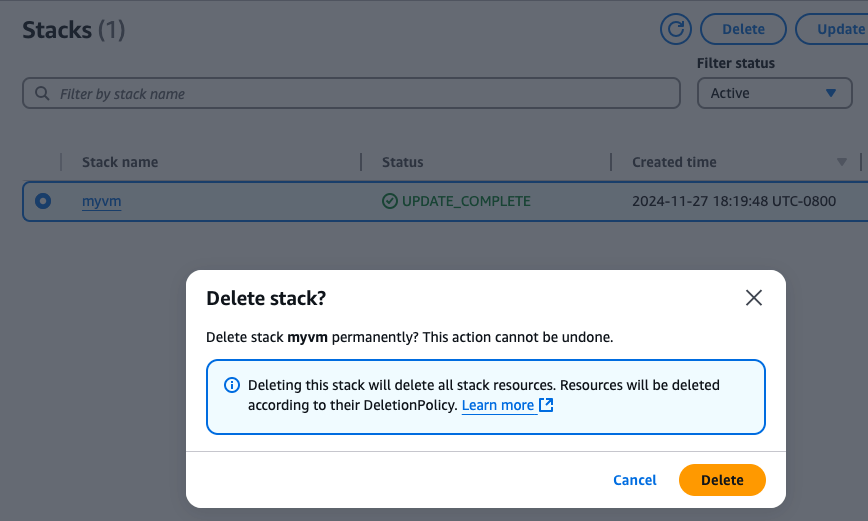
and just like that the stack and resources were deleted. I like this tool!
 davethemaker