Currently I’m learning Docker containers and Terraform, but at the same time, working directly with AWS API using the command line interface is good to know on a low-level way too. So in this post I’m going to describe how I set up installing the AWS CLI on my macOS in case I need to refer to this laterr.
First up, I had created an IAM user with more limited permissions than the root user. I had downloaded the key-value key set needed to access programmatic tools within AWS. I installed the AWS CLI installer at:
https://awscli.amazonaws.com/AWSCLIV2.pkg
I made sure it was installed correctly by reading the input after running $ aws –version
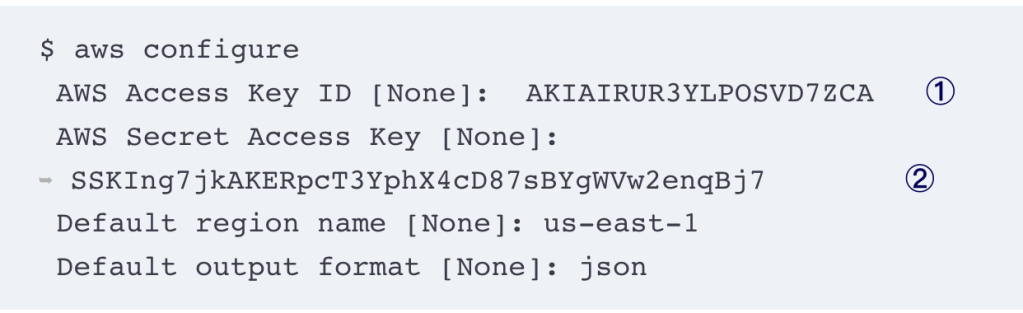
Next, to configure the AWS CLI with my programmatic access keys, I chose us-west-2 for my region name since it’s closer to me.
Now, to test this, I asked AWS for a list of all available regions with $ aws ec2 describe-regions
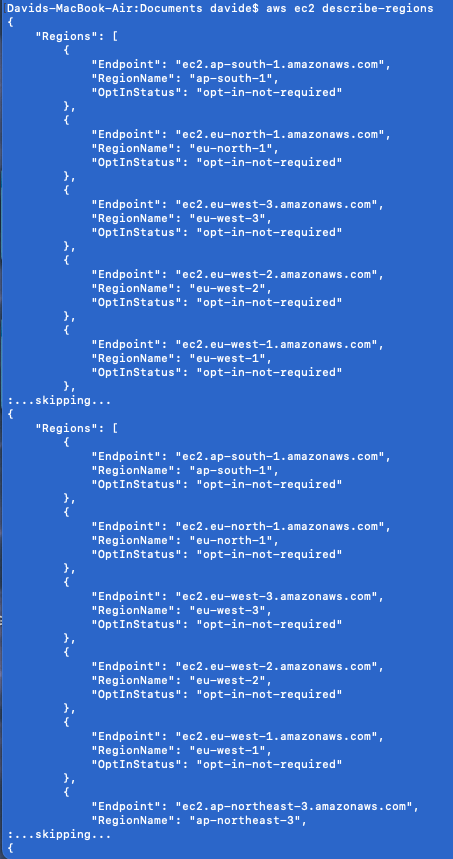
It’s a long list! But this shows that the CLI is working as expected (yay!)
AWS docs for CLI Command References (here) notes this command to find a list of all running EC2 instances I have- right now I don’t have anything running.
$ aws ec2 describe-instances

Some options to add to this command:

And then going down the rabbit-hole that is just “— filters” (mind you, this is just part of the list!)

How to use these filters, what would the syntax look like? Again AWS docs gives an example (here):
aws ec2 describe-instances --filters Name=instance-state-name,Values=runningNo instances yet so again an empty return list:

 davethemaker