I’ve been following a tutorial which describes how to use containers within the AWS environment- it’s well done (Cantrill) but it does require the user (me) to simply download a pre-packaged container-ready file as part of a Cloud Formation deployment. That works for the intention of the author – provide a good, birds-eye view of how these services work.
The problem is- I like to understand how things work. I want to be able to understand Docker and containers so I can make mischief cool things! So I wanted to build my own proof-of-concept. Let’s take a look.
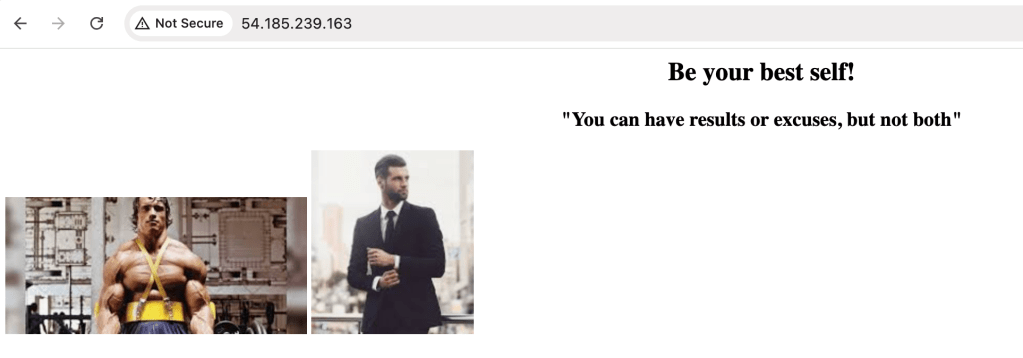
First, I created a project folder on my local workstation (read, mac laptop) and in it I put a few pictures of people that I find inspiring – Arnold S and a well-dressed businessman, an index.html file which basically throws those two images onto a web page, and a Dockerfile. Let’s take a look at that:
 # Use Ubuntu as the base image because I like ubuntu
FROM ubuntu:22.04

# Update the package list and install Apache HTTP Server
RUN apt-get update && apt-get install -y apache2 && apt-get clean

# Expose port 80 for HTTP traffic
EXPOSE 80

# Copy a custom HTML file to the default web directory
COPY index.html /var/www/html/
COPY *.png /var/www/html # copy pics

# Run Apache in the foreground
CMD ["apachectl", "-D", "FOREGROUND"]
I created the needed supporting infrastructure using Console: VPC, public subnet, routing table with route pointing to IGW and allowing access via ports 22 and 80. Then I spun up an EC2 instance in the public subnet, and SSH’d into it.
One handy tool that I used to make this work was the SCP command to transfer my project files directly from my local workstation to the EC2:
$ scp -r -i <secret_key.pem> insiration_project/ ec2-user@<ec2-public-IP-address>:~/And just like that, the folder and all its contents appeared in my EC2 instance home directory. Within that instance:
$ cd inspiration_project

# build the container using the Dockerfile
$ docker build -t apache-server .

# run the container from the EC2 instance with port 80 exposed
$ docker run -d -p 80:80 apache-server
Then, copying the instance IP address from the Console and pasting it into a browser showed the fruits of all this labor:
Takeaways
This touches upon a few things of note: usage of the scp command, using an EC2 instance to do work, including spinning up a server and serving content, and then taking that one step further and creating a container that can be its own self-contained environment being abstracted away from the instance itself.
This touches upon what I started to learn yesterday from Catrill: ECS service, which is focused on containers, can be used with the ECS – EC2 model wherein EC2 instances are spun up to provide containers (like we just did)m or the ECS – Fargate model, wherein AWS provides those container resources, as tasks and services, in a highly-available manner. There’s a cost to pay for having some of this heavy-lifting removed, but a useful option nonetheless.
In any case, baby steps- this was a great practice for working with containers.
 davethemaker