
As I’ve been exploring AWS and creating resources, I oftentimes pass over the optional tags, but as the number of resoures (and complexity of the projects) increases, I know it’s time to re-evaluate my strategy! So this is going to be an exercise in better working with tags to manage resources..
The scenario is that I have a command server in public subnet, and several instances in a private subnet. First, I SSH into the command server:

I want to find the instances, using the CLI, that are tagged with a tag of Project and a value of ERPSystem. Here’s the command, which I add to the terminal:
aws ec2 describe-instances --filter "Name=tag:Project,Values=ERPSystem"
This gives a very loooong output of JSON formatted output! Here’s just a snppet:
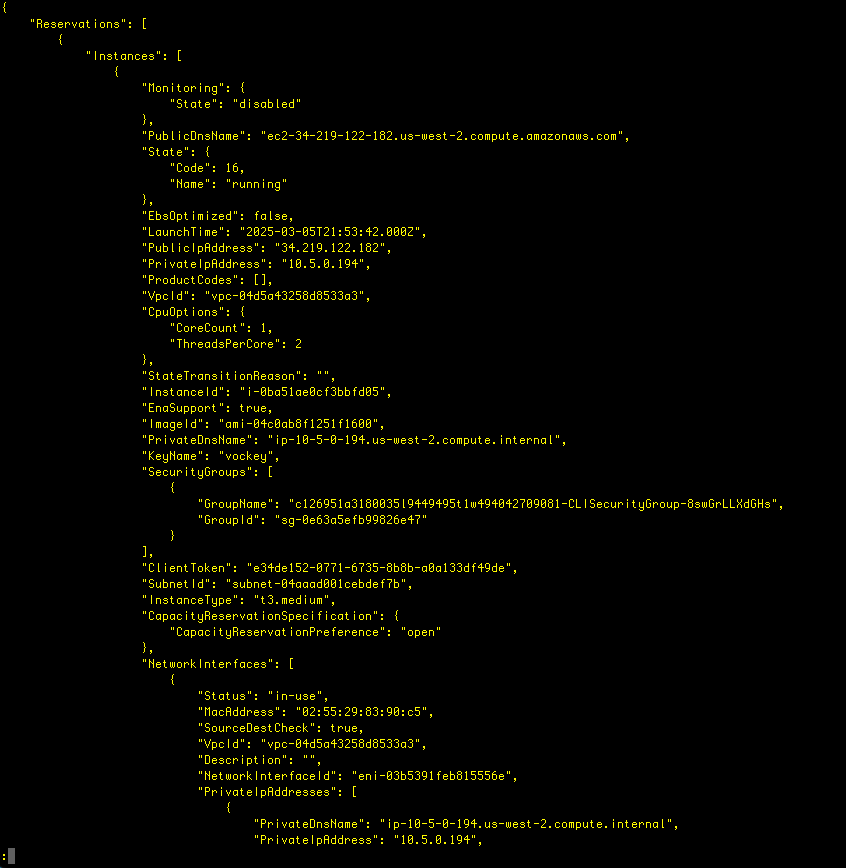
Let’s use the –query parameter to narrow it down:
aws ec2 describe-instances --filter "Name=tag:Project,Values=ERPSystem" --query 'Reservations[*].Instances[*].InstanceId'
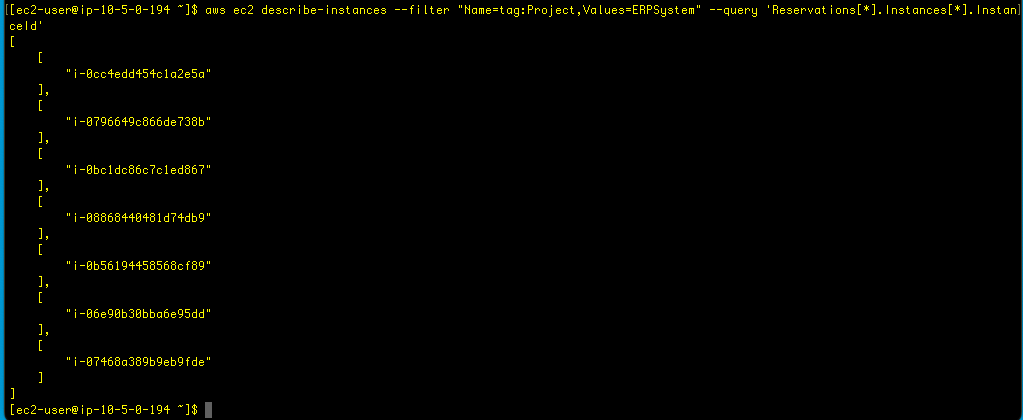
Nice! The –query command used in this example uses the JMESPath wildcard syntax to specify that the command should iterate through all reservations and all instances and return the InstanceId for each instance in the return results. I have heard of JMESPath before, from someone working in the cloud field, so this is a tool I’m glad to work with. Let’s try another query:
aws ec2 describe-instances --filter "Name=tag:Project,Values=ERPSystem" --query 'Reservations[*].Instances[*].{ID:InstanceId,AZ:Placement.AvailabilityZone}'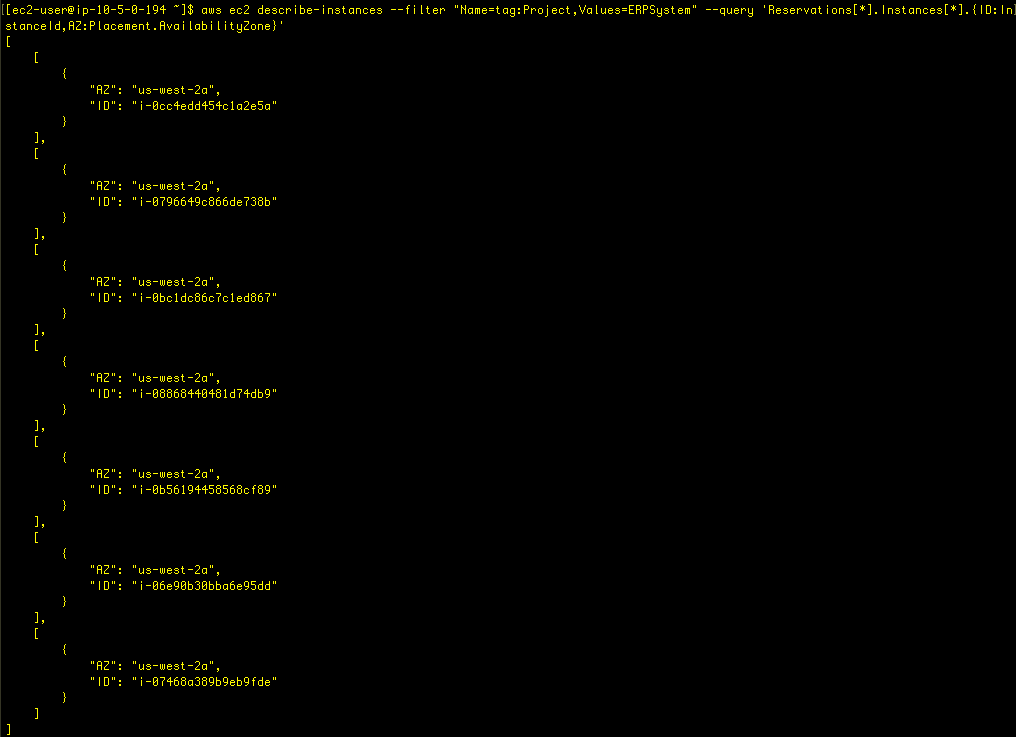
This uses an alias to make the output more condensed. Here’s the format:
object.{Alias1:PropertyName1,Alias2:PropertyName2,[…]}Now, to include the Project value, this command was used:
aws ec2 describe-instances --filter "Name=tag:Project,Values=ERPSystem" --query 'Reservations[*].Instances[*].{ID:InstanceId,AZ:Placement.AvailabilityZone,Project:Tags[?Key==`Project`] | [0].Value}'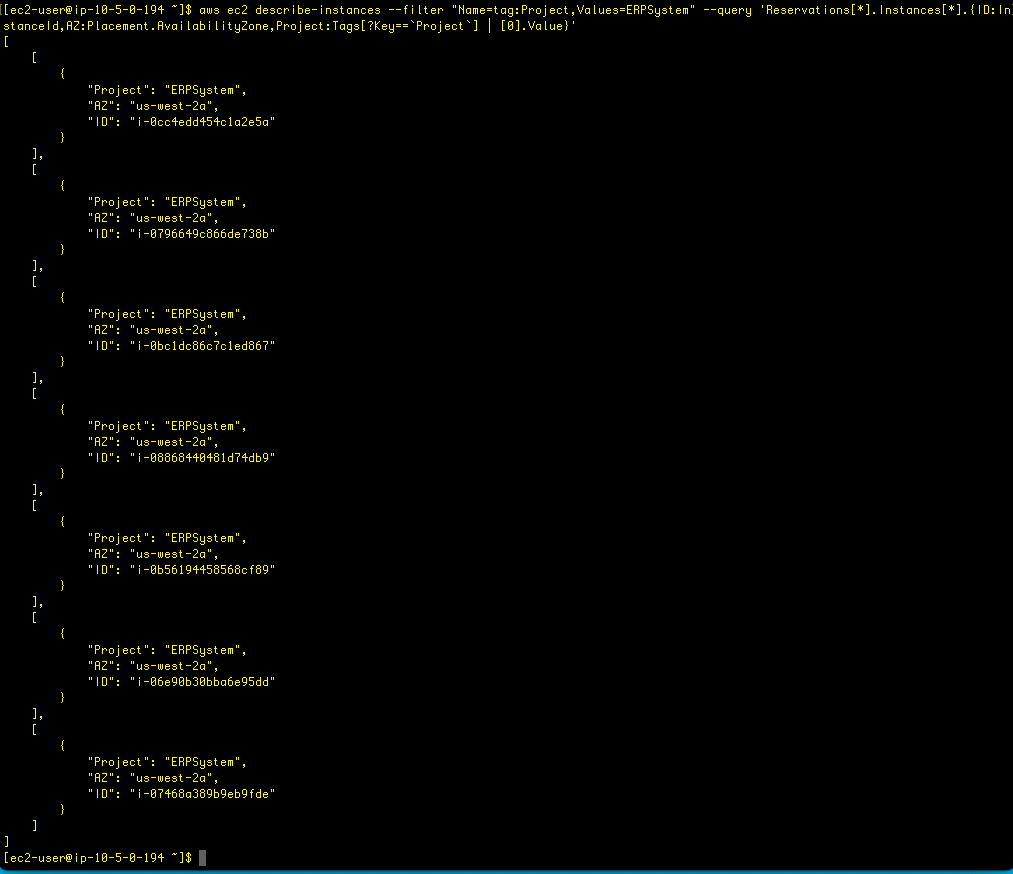
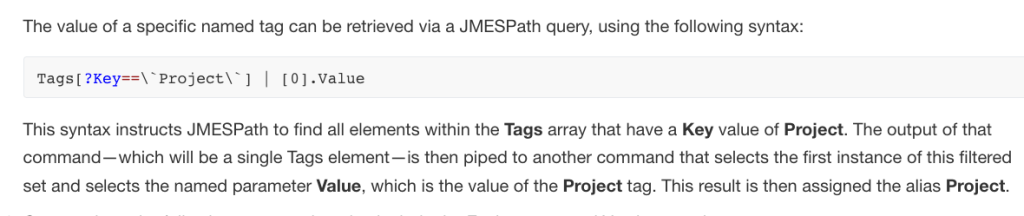
Let’s include Environment and Version tags to the output:
aws ec2 describe-instances --filter "Name=tag:Project,Values=ERPSystem" --query 'Reservations[*].Instances[*].{ID:InstanceId,AZ:Placement.AvailabilityZone,Project:Tags[?Key==`Project`] | [0].Value,Environment:Tags[?Key==`Environment`] | [0].Value,Version:Tags[?Key==`Version`] | [0].Value}'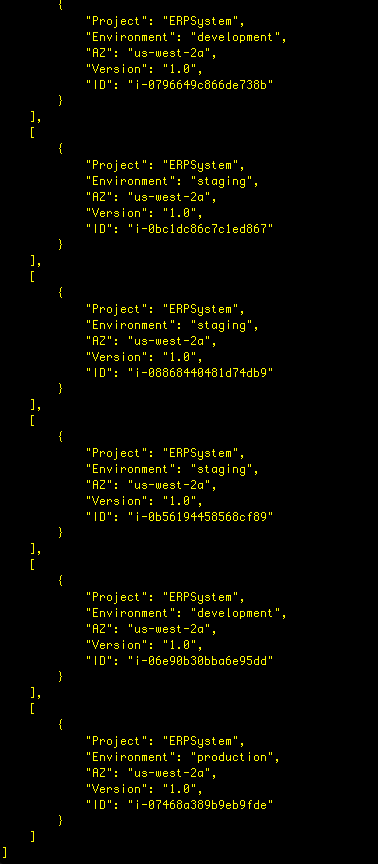
For some more practice, let’s try a command that filters only the instances associated with a certain project name tha belongs to env Environment:
aws ec2 describe-instances --filter "Name=tag:Project,Values=ERPSystem" "Name=tag:Environment,Values=development" --query 'Reservations[*].Instances[*].{ID:InstanceId,AZ:Placement.AvailabilityZone,Project:Tags[?Key==`Project`] | [0].Value,Environment:Tags[?Key==`Environment`] | [0].Value,Version:Tags[?Key==`Version`] | [0].Value}'
Now, so far I’ve been adding these queries one by one in the CLI, but automation is always a better approach (when possible). So let’s create a bash script to tackle this:
#!/bin/bash

ids=$(aws ec2 describe-instances --filter "Name=tag:Project,Values=ERPSystem" "Name=tag:Environment,Values=development" --query 'Reservations[*].Instances[*].InstanceId' --output text)

aws ec2 create-tags --resources $ids --tags 'Key=Version,Value=1.1'
~ 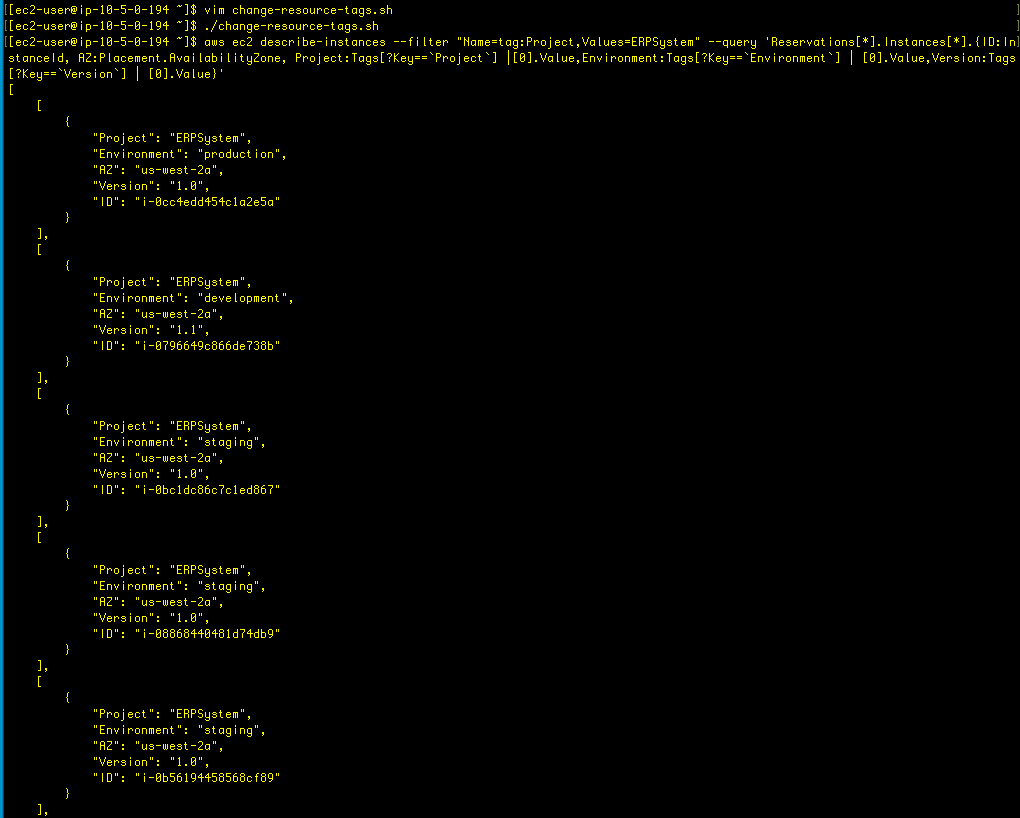
The version number has been incremented for the instances we wanted (ERPSystem, development).!
Stopinator
Within aws-tools, we have a stopinator.php script that uses the AWS SDS to stop and restart instances based on a set of tags. Handy, right?!
The arguments are


The above was the result of running stopinator using the -t flag, looking at project and env:
./stopinator.php -t"Project=ERPSystem;Environment=development"
Sure enough, the instances with those parametes were stopped.

Let’s start them up again (see the -s flag):
/stopinator.php -t"Project=ERPSystem;Environment=development" -s

Summary
In conclusion, we’ve explored the benefits of using tags, which comes in very handy when needing to configure resources- using a script pointing to particular tags makes the job much easier for stopping, starting, or making changes. Great!
 davethemaker