Containers are lightweight computer services and I’m going to work on exploring this technology. First, to create a cluster, which groups tasks, services together.
First, go to ECS and create a cluster. For this example, I’m going to select both Fargate, which is serverless provisioning, and EC2 Instances, which requires manual configuration.
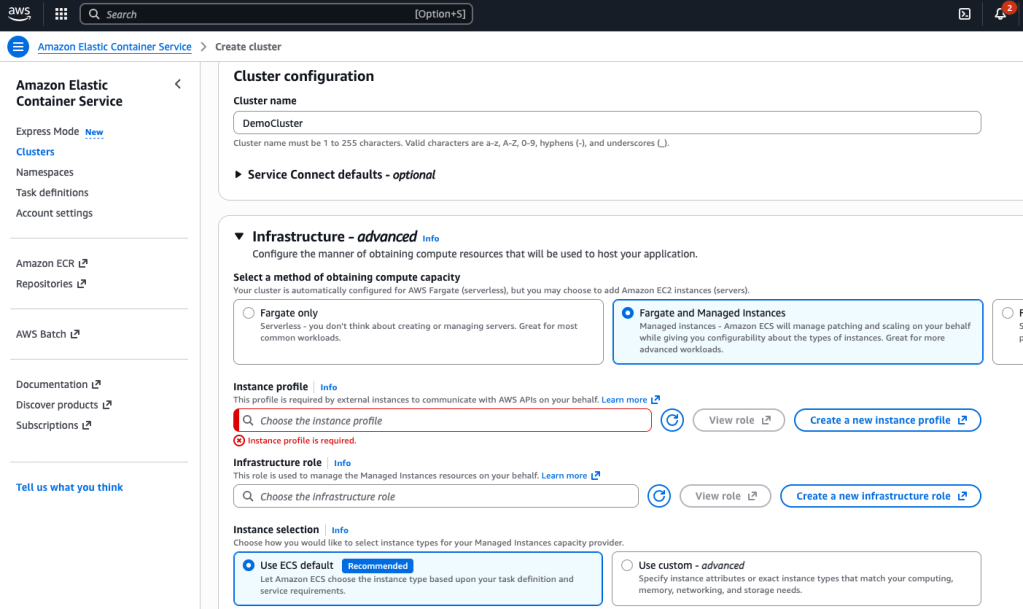
Since I selected EC2 as well, I was required to provide Instance Profile, so I elected to create a new one.
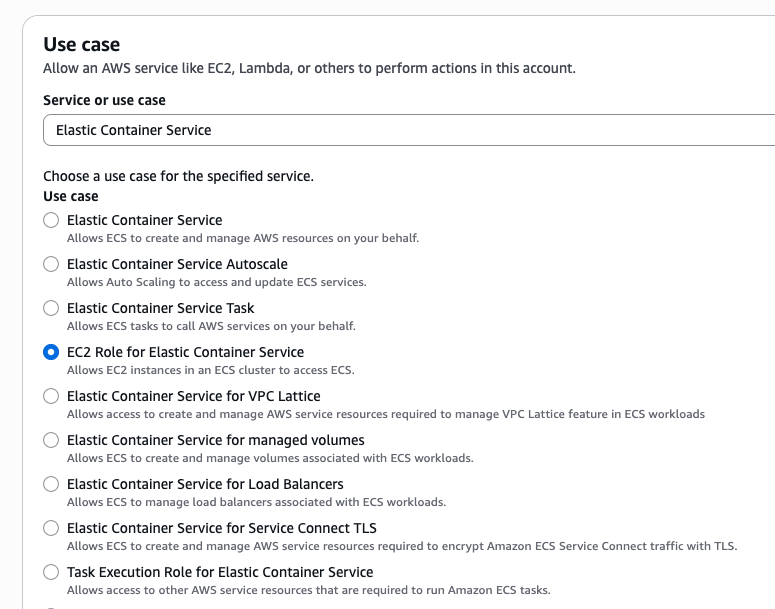
This included the required permissions policy that allows ECS agent registration, cluster heartbeats, and task lifecycle operations.
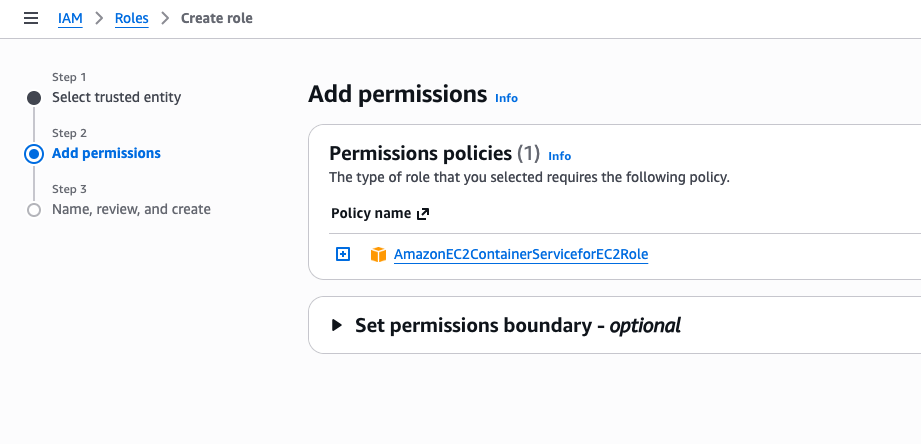

As we can see from the policy, this allows the principal, or the EC2 service that will be used within the cluster, permissions to assume role. This role ‘ecsInstanceRole’ was created.
I was then able to attach the role to the cluster configuration, which had asked for instance profile:

I was also asked to create a role for the Ec2 instance, which I did, and titled it ‘ecsInfrastructureRoleForManagedInstances.’ I attached this to the EC2 within cluster configuration:

And then the cluster was created:
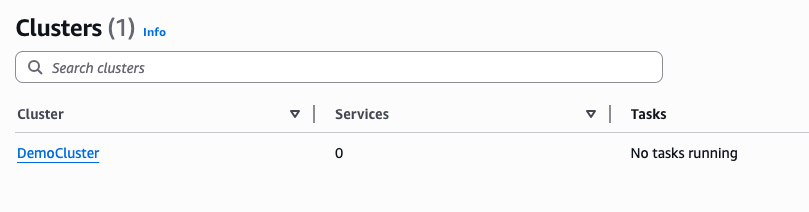
This actually didn’t work the way that I expected, as no instances were created. So I deleted the cluster to try again. This time, I selected Fargate and Self-managed instances, which gave me the configuration parameters I was hoping for, such as the min and max number of EC2 instances.
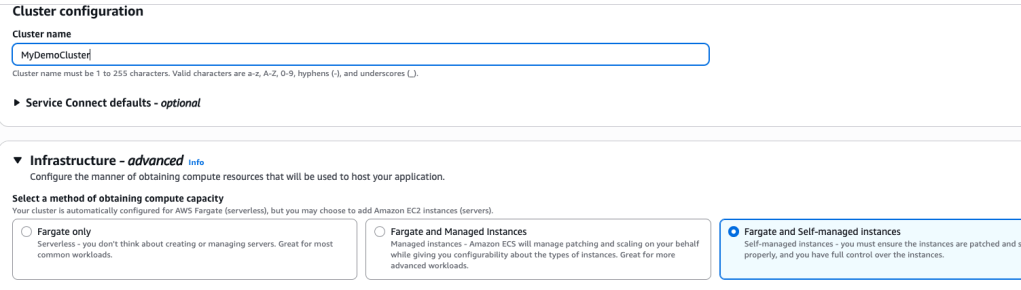
I selected t2.micro for free tier, 0-5 desired capacity
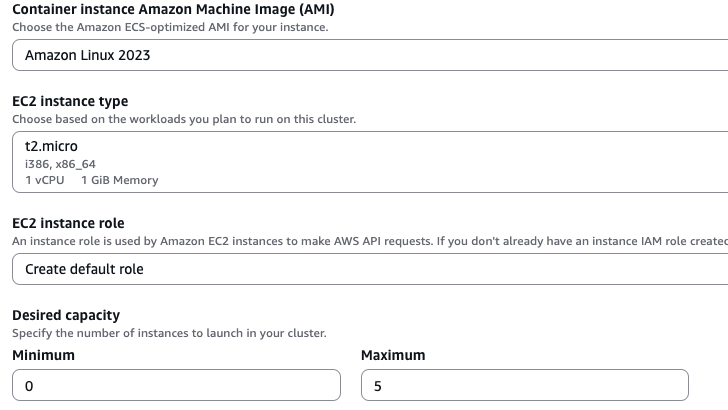
I see that an auto scaling group has been created, for 0-5:

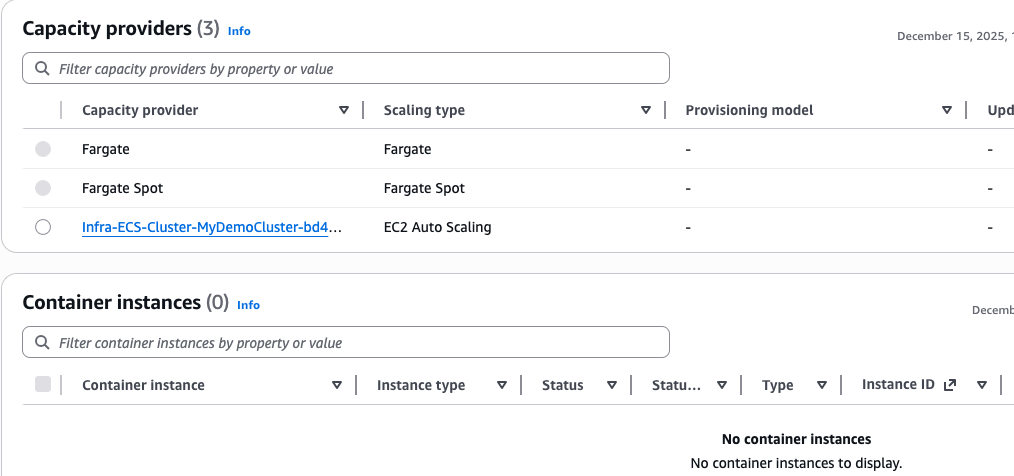
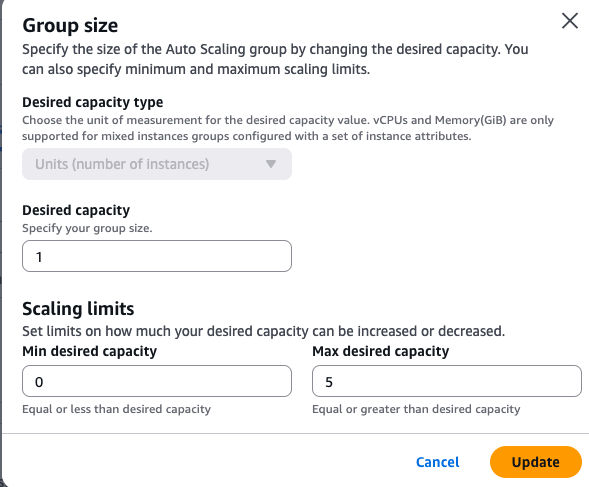
Right now there aren’t any container instances running since the range was set from 0-5, but let’s change that to 1:
I adjust this via the ASG page, changing 0 to 1:
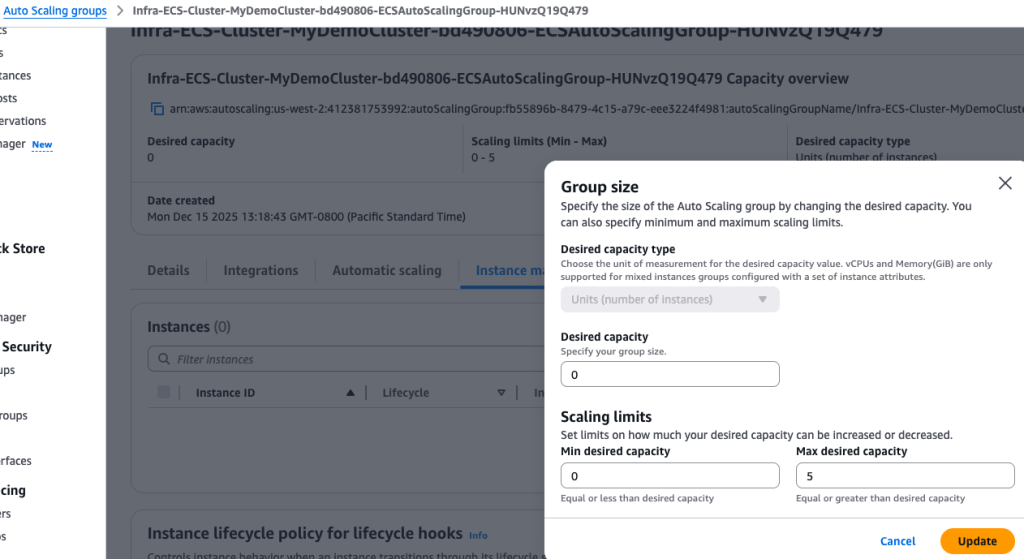
The revised policy for ASG
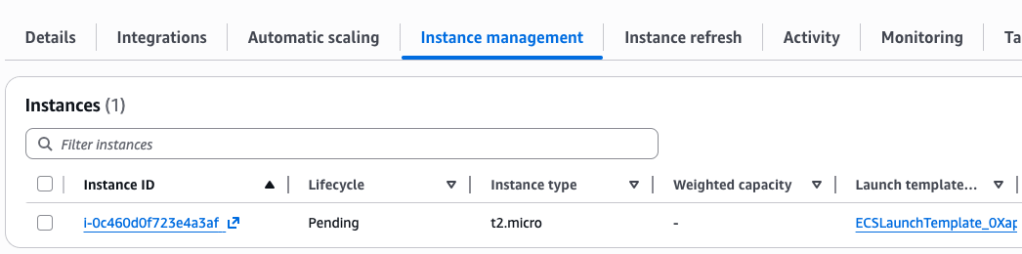
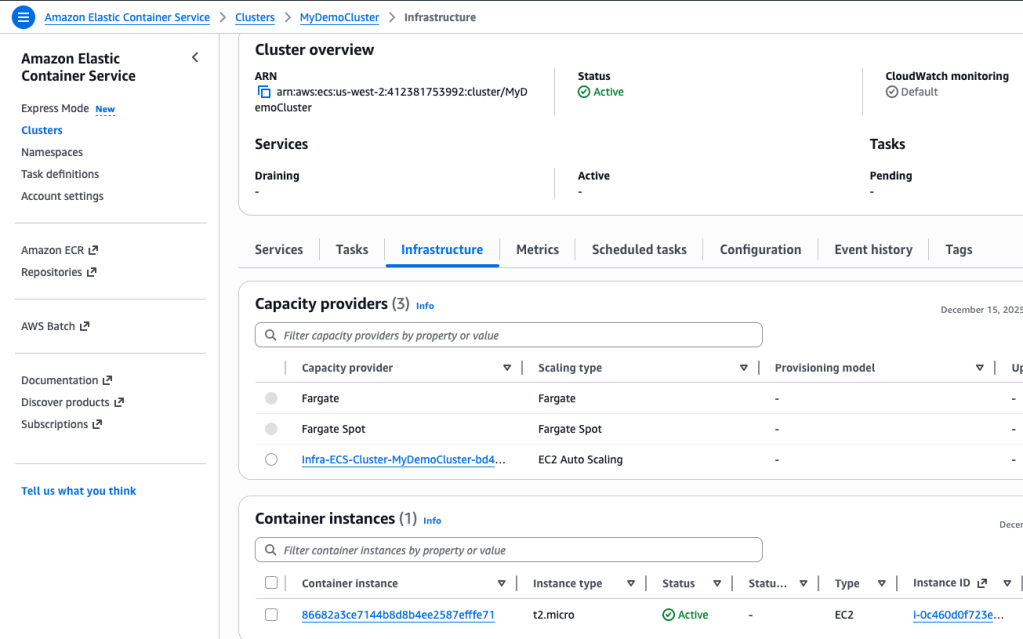
Right away, we can see than an instance is being spun up, it will be registered within the Cluster previously created:
Create a Container Task
So now we have a container cluster and a container instance (EC2) running. Let’s create a task:
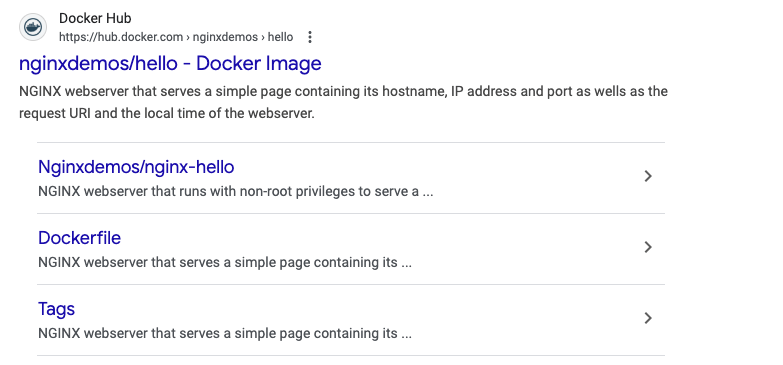
Under ECS, select Task Definitions > Create New task Definition, name it nginxdemos-hello. We are going to grab a docker image that is named just that:
I select the cheapest configs possible (.5 vCPU) on a Linux OS instance and 1GB memory.
Under the Container – 1 sectrion of the Creating New Task Definition page, I add a name and the image URI
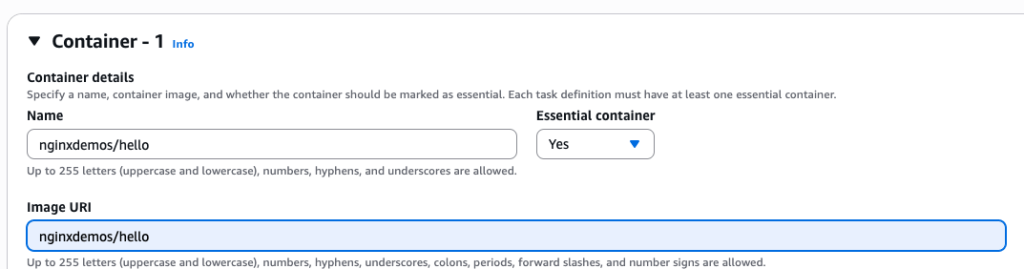
This will pull the docker image automatically from docker hub.
Next, I created a service

If I click on the service and look at the details:
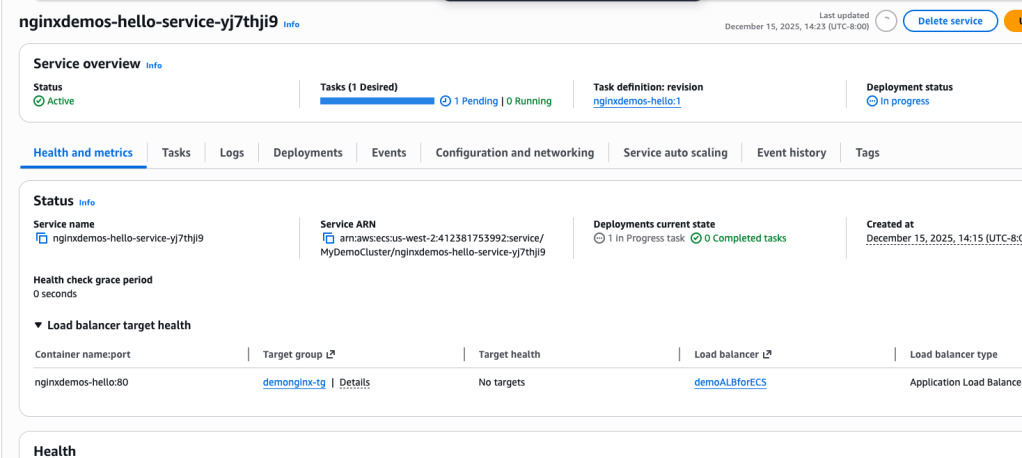
We can see that the task is in progress
It is linked to a target group, so if I click on that:

A Second Time
I wanted to make sure I understood this so I deleted all the resources. Here’s the steps I took:
First, create the ECS Cluster; as part of this configuration process, you create the ASG, including network/subnet placement.
Second, I created a Task that used the nginxdemos-hello Docker image that is hosted on Docker Hub. I basically told AWS how I wanted the docker container to be hosted (Fargate), setting CPU and memory (cheapest, please: 0.5 and 1GB). Now, we could have selected EC2 but didn’t. This is the computing service that will run the Docker image. In fact, within the configuration settings, we have Container – 1 config, where we provide the name of the container and the container URI for it to be downloaded into the computing service. Port mapping is done here too: port 80 to container port 80 for example.
Third, I created the service which actually runs the tasks. ECS > Clusters > select the cluster we created > Create Service. This is the “ringleader” that makes sure that the task is running. We provide a name, select capacity provider (Fargate). We create a Security Group with allow all HTTP traffic to port 80. This allows us to access the port 80 of the container nginx service. A little bit further, we create ALB, with a Target Group that we had created earlier. I got to EC2 to Target Groups and I see that it does point to the ALB just created. I click on the Target Group and this time it does list a Registered Target with an IP address: see below
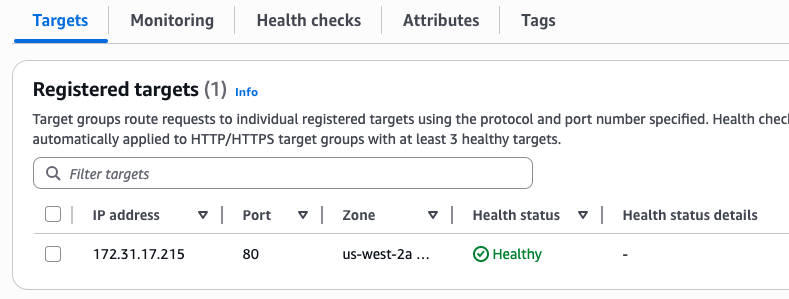
I was puzzled when I grabbed the DNS name for the ALB and the site did not resolve. Then I realized I hadn’t changed the Auto Scaling policy to reflect a 1 minimum. So I went to EC2 > Auto Scaling Groups > Edit and changed the minimum number from 0 to 1. Now ECS Cluster reflects a running Container Instance:

EC2 shows that an instance is running:

After waiting for it to initialize….
I grabbed the DNS address from the ALB, pasted it into browser URL and voila!

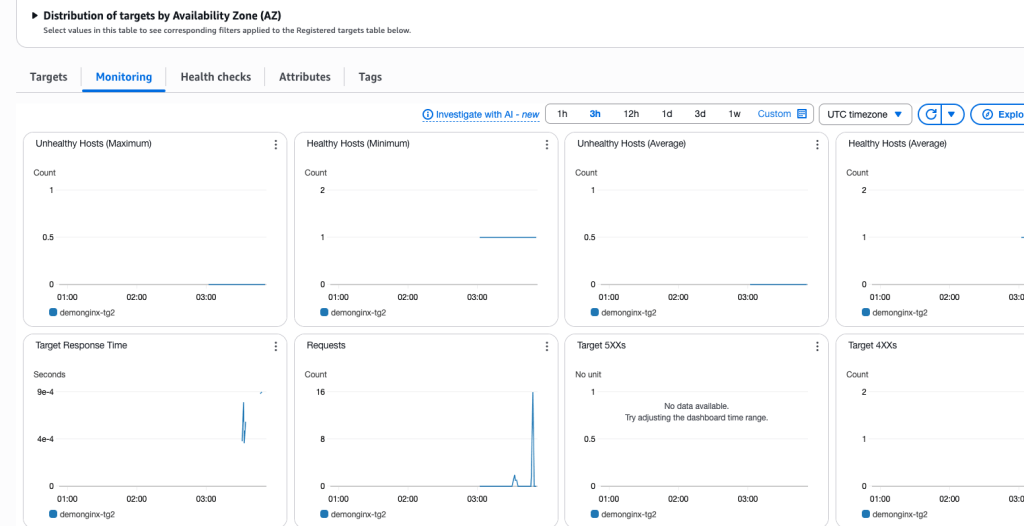
We can also monitor the target group instance
We can also look at Service events:

 davethemaker